Traffic sources: Organic, Direct, Paid, and AI
The Source dropdown lets you view metrics for one traffic channel at a time. Each source shows a different set of metrics, for a good reason.
Switch source
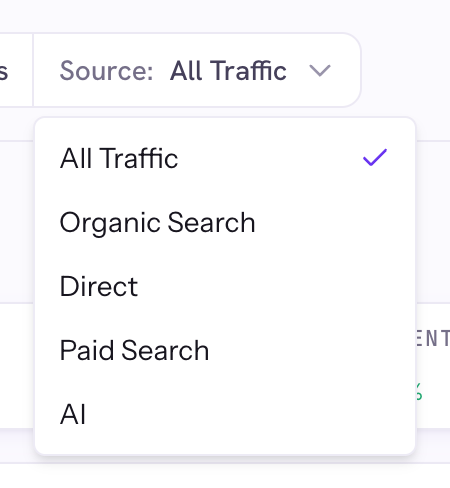
On the dashboard, open the Source dropdown and pick All Traffic, Organic Search, Direct, Paid Search, or AI. The chart, stat cards, and tables all update.
Why some metrics grey out
Clicks and impressions come from Google Search Console, which only covers organic search. So on Direct, Paid, and AI those two cards are greyed out, and you see Users and Key Events (from Analytics) instead.

First use of Direct, Paid, or AI
The first time you pick one of these, Page Pulse backfills the historical per-source numbers in the background. Give it a few minutes, then refresh.
Good to know
- Searching a query switches the source to Organic automatically, since query data is organic-only.