Reading the “Change detected” card
Click a red change marker on the chart and the change-detected card opens. It tells you what changed, how much it mattered, and gives you the tools to dig in.
Open it
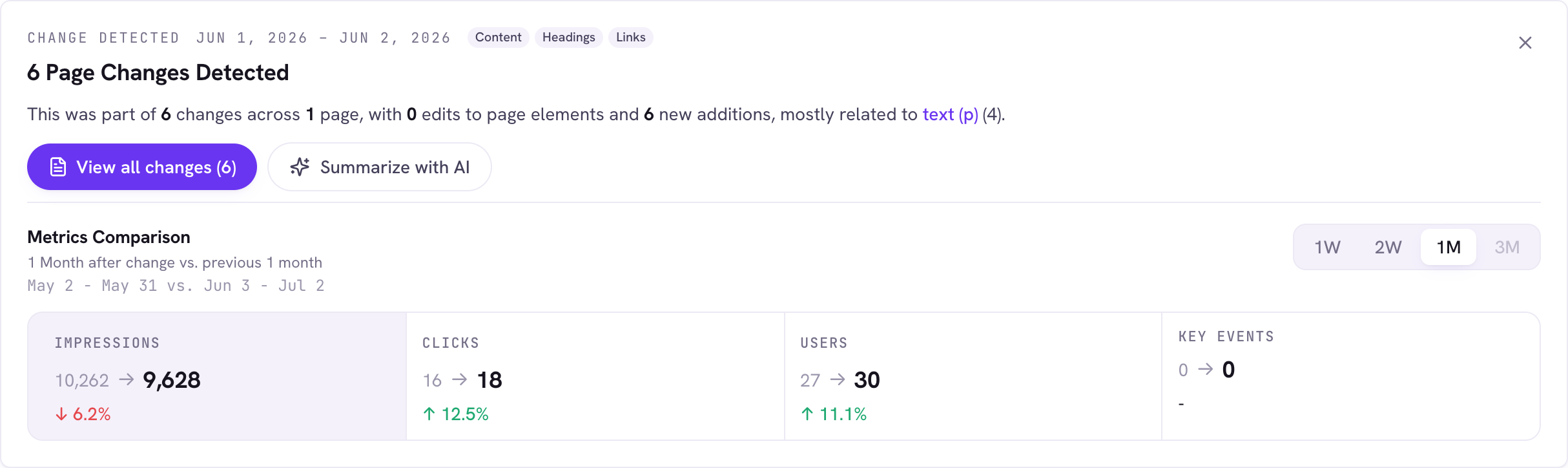
On the dashboard chart, click any red change bar. The card appears below the chart with the date, change-type chips (Content, Headings, Links, Meta & SEO), and a plain-English summary.
Dig into the changes
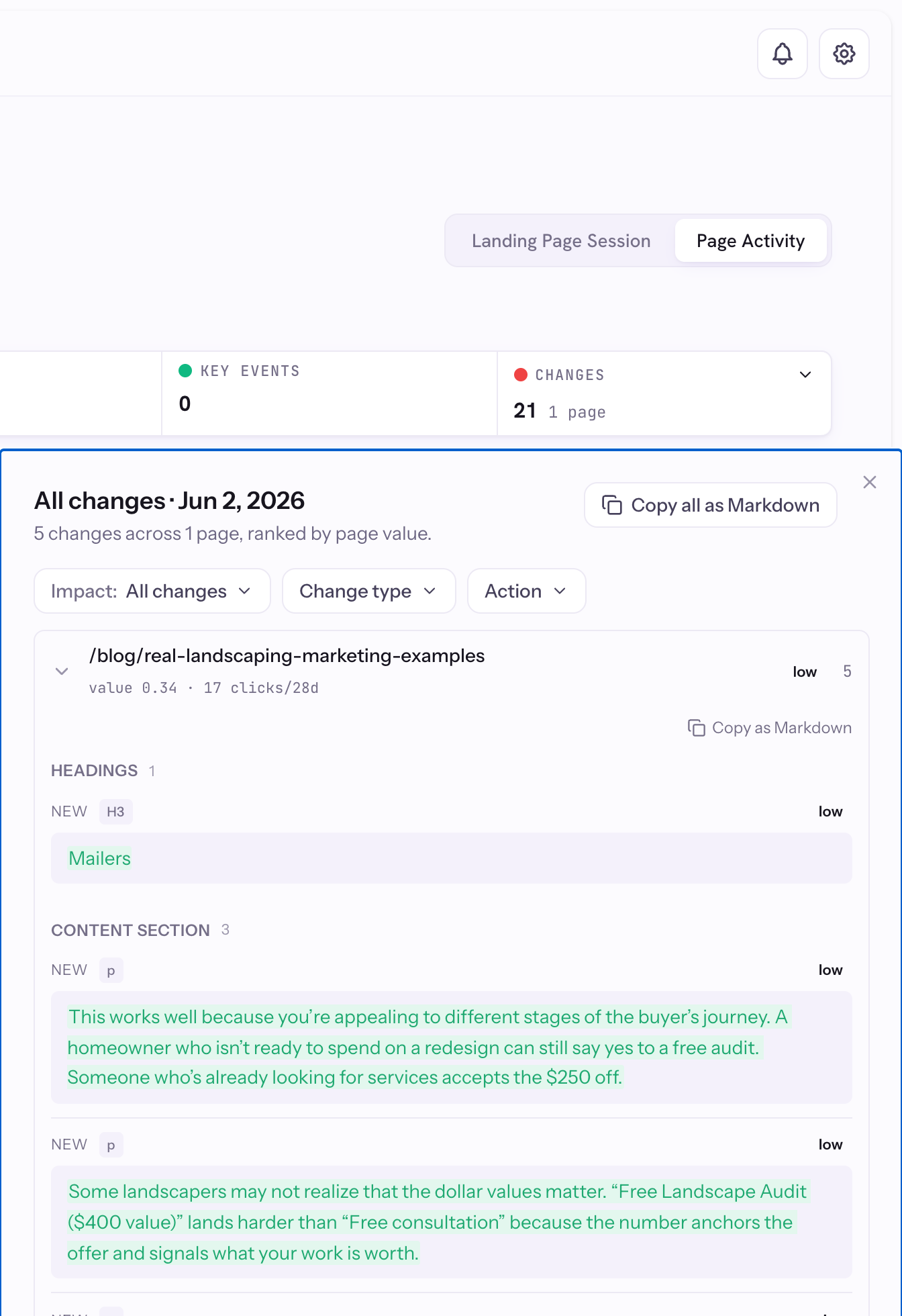
- Click View all changes to open a drawer of every change, ranked by page value, with word-level before and after diffs.
- Use Copy all as Markdown to drop the whole record into a report or ticket.
Hand it to AI
Click Summarize with AI to send a ready-made prompt to Claude or ChatGPT. Choose Open in Claude, Open in ChatGPT, or just copy the prompt. This needs the Page Pulse MCP connected in your AI tool.
Check the metrics
The before and after strip shows Impressions, Clicks, Users, and Key Events around the change, with a window selector (1W, 2W, 1M, 3M).
Good to know
- On the Proof lens, this card also shows the realized-impact note.