Create an alert
Alerts email you (or ping Slack) when metrics move or pages change, so you do not have to check the dashboard. Here is how to set one up.
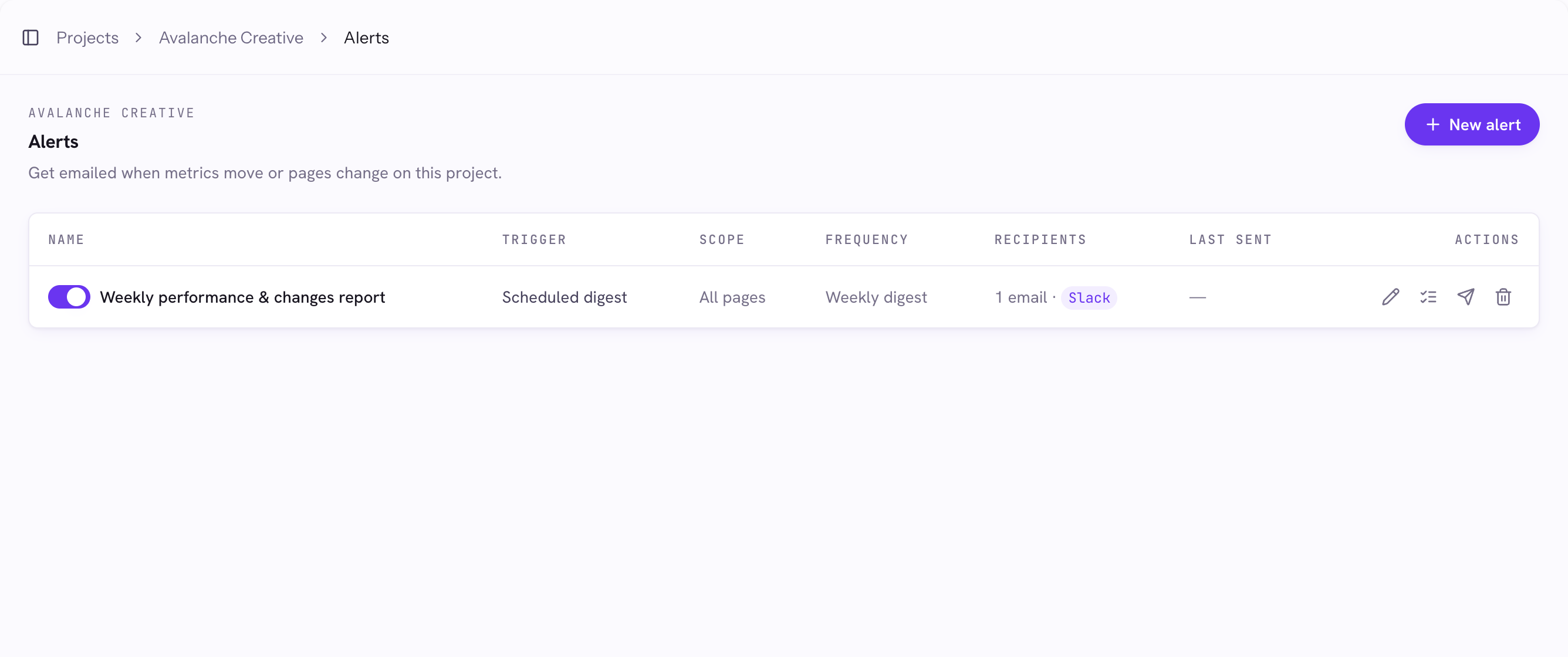
Open Alerts and pick a trigger
- Open a project from your Projects and click the Alerts (bell) icon.
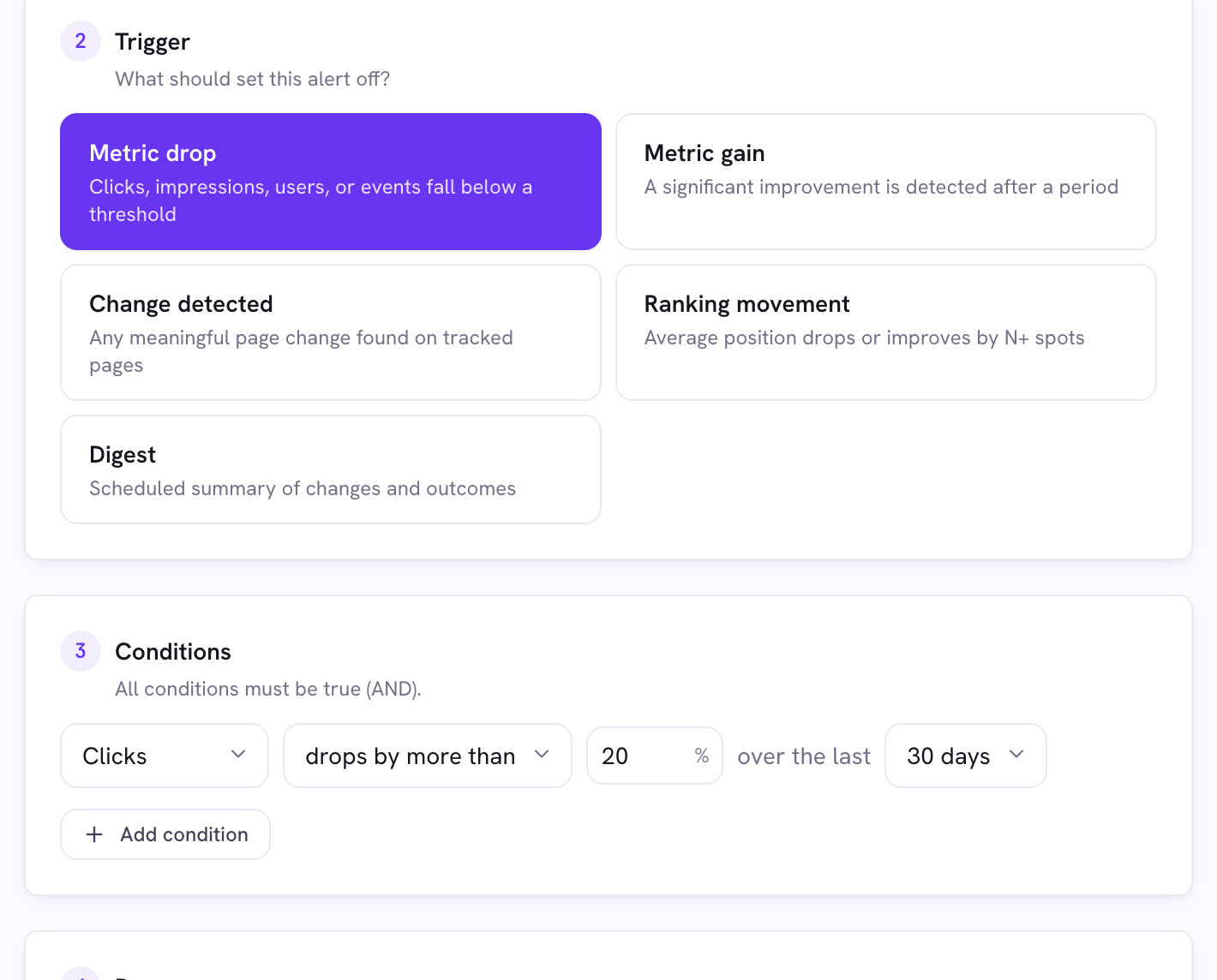
- Create an alert and choose a trigger: Metric drop, Metric gain, Change detected, Ranking movement, or a scheduled Digest.
Metric and ranking triggers need GSC or GA data, so they are disabled on crawl-only projects.
Set conditions and scope
For metric triggers, add one or more conditions (for example, “Clicks drop by more than 20% over the last 30 days”). All conditions must be true. Then set the scope: all pages, tagged pages, specific URLs, or specific queries.
Choose a schedule
Pick a frequency: Instant, or a Daily, Weekly, Monthly, or Quarterly digest. For digests, choose a time of day and your timezone. The alert fires at that local time.
Set delivery
Add email recipients, a Slack channel, or both. To use Slack, connect your workspace once from Organization, then Integrations, then pick a channel here.
Test it
Use Check now to see whether the alert would fire against live data without sending anything, or Send test to deliver a real preview.
Good to know
- Not sure where to start? The Alerts screen has one-click quick-start templates for weekly and monthly reports.
- A brand-new alert starts evaluating on its next scheduled tick.